
Open and Manage a Position
Connect, deposit, mint, top up, repay, withdraw and close, read your LTV, and what each collateral needs.
Before you start
What you need
- A Solana wallet, such as Phantom, Backpack or Solflare.
- A little SOL for network fees. Every action is a transaction you sign.
- Collateral the app supports. Markets lists every asset you can borrow against. Switch on In my wallet to see only the ones you hold.
- A whitelisted wallet, while PUSD is in alpha. See Join the Alpha.
Connect a wallet
You connect your wallet on the invite page when you join. After that, or to use the app on another device, connect from the header:
Open the wallet picker
Select Connect wallet at the top right of any screen.
Choose your wallet
Wallets installed in this browser are listed first, and you can search the list. Phantom, Backpack and Solflare are always there; if one isn’t installed, Get takes you to where to download it.
Approve in your wallet
Connecting shares your address only. It doesn’t let the app move anything: every transaction still needs your signature.
Your address then shows in the header. Select it to open the wallet menu: copy the address, see your SOL and PUSD balances, jump to Positions, View on explorer, or Disconnect. To use a different wallet, disconnect and connect again.
Signing
Every action opens a dialog that shows its effect first: the LTV, liquidation price and fee after the change. When you confirm, your wallet asks you to sign. A message then says whether it went through, with a View link to the transaction on Solana Explorer. If you decline in your wallet, nothing is sent and the app says Cancelled.
Open a position
You can borrow against SOL staked with a listed validator, a liquid staking token (LST) or a tokenized stock. The steps are the same for all three; what’s different for each is below.
Find the asset on Markets
Open Markets. Filter by Native stake, LSTs or Stocks, or switch on In my wallet to see only what you hold. Each row shows the asset’s TVL; Capacity, how much of its borrow cap loans already use; Total Borrow, the PUSD owed against it; Liq LTV, the LTV at which a loan is liquidated (hover for the max LTV); and Fee, the fixed yearly rate.
Open the new position dialog
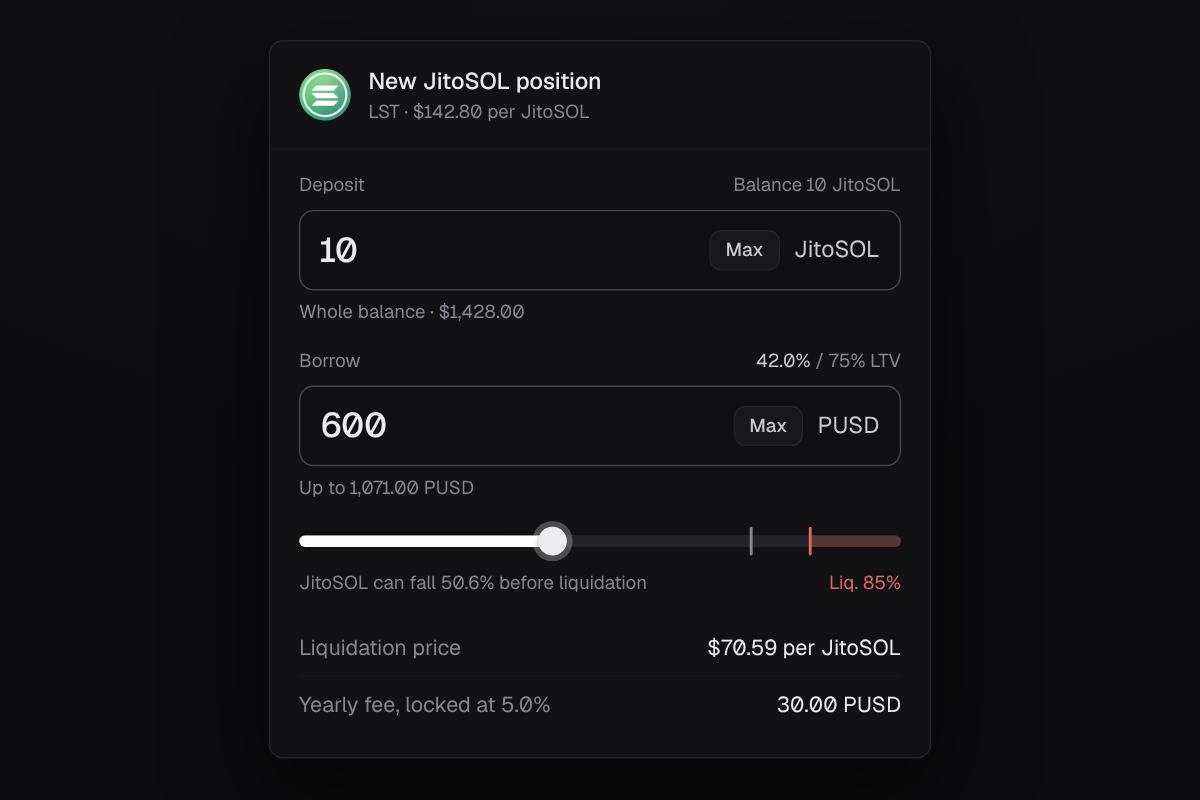
Select Create on the row, or anywhere on it. The dialog shows the asset’s class and price at the top.
Choose how much to deposit
The deposit starts at your whole balance. Type a smaller amount to deposit part of it, or select Max to go back to all of it.
Choose how much PUSD to borrow
Type an amount under Borrow, or drag along the track. Beside the label is your LTV against the max; Up to under the field is the most you can borrow. Leave it empty to deposit now and borrow later.
Check the terms
Under the track you see how far the price can fall before liquidation. Liquidation price is the price at which this loan would be liquidated. Yearly fee, locked at … is what the loan costs per year at its fixed rate, which is set now and doesn’t change.
Confirm and sign
Select Deposit and borrow (or Deposit) and sign in your wallet. The PUSD lands in your wallet and the app takes you to Positions.
How much you can borrow
Up to is the lowest of three limits. The hint under the field says which one applies.
| Limit | What it is |
|---|---|
| Max LTV | A share of what the deposit is worth now. Set per asset. |
| Your borrow limit | The most PUSD your wallet can owe across all its loans. |
| The market’s borrow cap | The most PUSD that can be minted against this asset across every borrower. If it’s used up, you can still deposit. |
Stake accounts
SOL staked with a validator listed on Markets can back a loan. The stake stays delegated to the same validator and keeps earning while it does. Each listed validator is its own row under Native stake, and stake with each validator is a separate loan. The steps to open one are in Open your first position.
Which stake accounts show up
A stake account shows up as collateral only when all of these are true:
- It’s delegated to a validator listed on Markets. Each listed validator is its own row under Native stake.
- It’s fully active. Stake that is still activating, or is deactivating, doesn’t show.
- Your connected wallet is the account’s stake authority.
New stake becomes active at the start of the next epoch, every two to three days.
Depositing stake
- Pick an account. If you have more than one active stake account with the validator, choose one. Merge others into selected folds the rest into it first, so you can deposit them as one.
- At least 1 SOL. Depositing part of an account splits that part into the loan, and both the part you deposit and what stays behind need at least 1 SOL. If what’s left would be under 1 SOL, choose Deposit whole account or Leave 1 SOL.
- It keeps earning. The stake stays delegated to the same validator while it backs the loan.
LSTs
A liquid staking token (LST) can back a loan. Markets lists the ones you can use under LSTs. It keeps accruing staking rewards as usual while it backs the loan.
Watch the LST’s own price
An LST can trade below the SOL it represents, which moves your LTV even when SOL doesn’t.
Tokenized stocks
A tokenized stock can back a loan. Markets lists them under Stocks.
US market hours
A tokenized stock is only liquidated while the US market is open; liquidation is paused while it’s closed. Prices can jump while the market is closed, so leave more room under the max LTV than you would for an asset that trades all the time.
The issuer
The token depends on its issuer as well as the stock.
Each class at liquidation: Liquidations.
Manage a position
Every loan is a card on Positions. Above them, four figures add up all your loans: Collateral, Debt, Net equity and Blended fee.
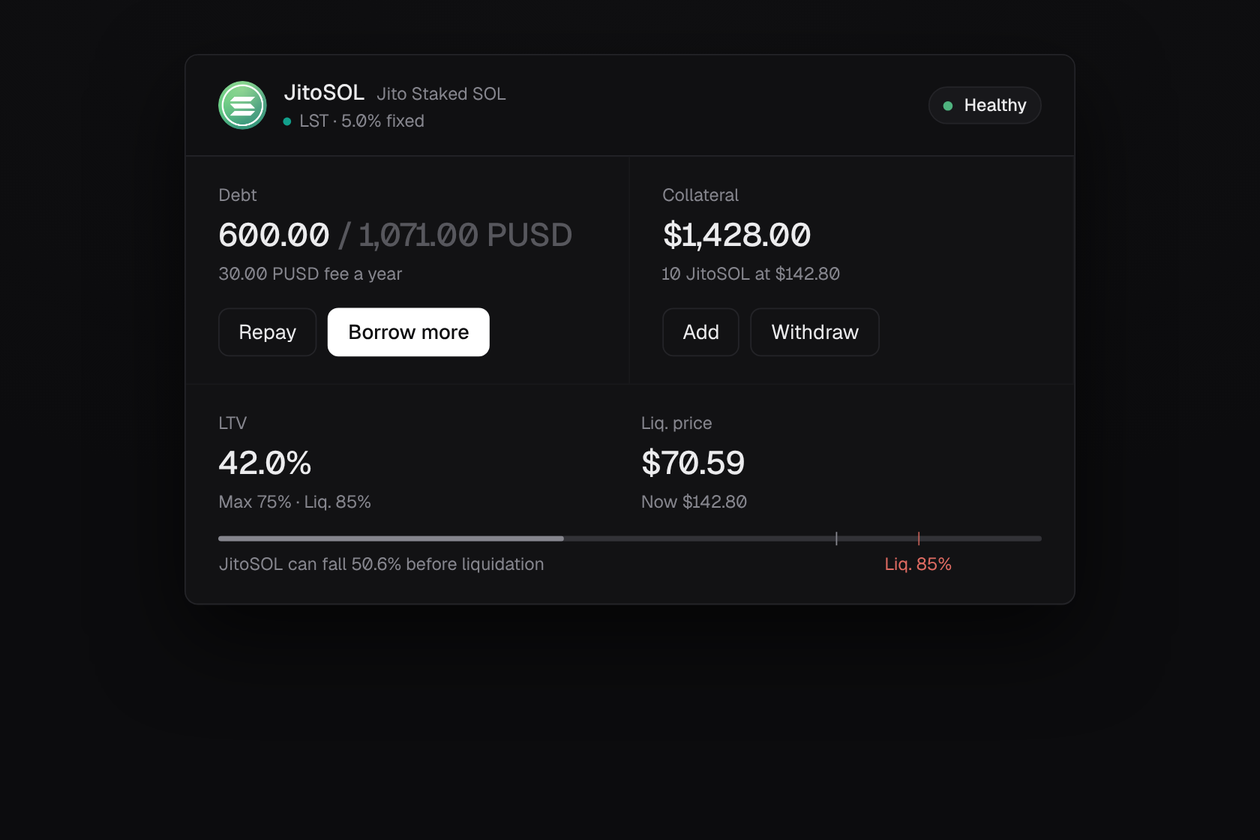
Each card has three columns:
- Debt: what you owe against the most this loan can owe, the fee a year, and Repay and Borrow more.
- Collateral: what it’s worth now and how much you deposited, with Add and Withdraw.
- LTV and Liq. price, with Now beside it, then a track showing how far the price can fall before liquidation.
Every button opens a dialog that shows the debt or collateral, LTV, liquidation price and yearly fee before and after, so you see the effect before you sign.
Borrow more
Select Borrow more (just Borrow on a loan with no debt). Up to shows how much more you can borrow, held to the same three limits as a new loan, and Max fills it to the cent. The new PUSD carries the loan’s fixed rate. It’s greyed out when the loan is At risk or Liquidating, when there’s no price for the collateral, or when no limit leaves room.
Add collateral
Adding collateral lowers the LTV and the liquidation price. It’s how to fix an At risk loan without paying anything back.
- LSTs and stocks: select Add and enter an amount from your wallet.
- Stake: select Add and choose another active stake account delegated to the same validator. The whole account merges into the loan and stays delegated. Stake with a different validator opens its own loan.
Repay
Select Repay. The amount starts at the most you can repay: the whole debt, or your wallet’s PUSD if that’s less. Type less to repay part. If you don’t hold PUSD, swap for it first.
The debt includes the fee built up so far, so it’s a little more than you borrowed.
Withdraw
Select Withdraw. Up to is the most that can come out while the loan stays under its max LTV; with no debt, that’s all of it. It’s greyed out when the loan is At risk or Liquidating.
- LSTs and stocks return to your wallet.
- Stake comes back as a stake account you control, still delegated. If you already hold an active stake account with that validator, the withdrawal merges into it. If not, it splits into a new account, which needs at least 1 SOL. Either way, at least 1 SOL stays in the loan while it has debt.
Close a loan
Open Repay and tick Close position
The amount becomes the whole debt. The program works out the exact figure, fee included, when the transaction runs.
Cover any shortfall
If your wallet holds less PUSD than the loan owes, the dialog says by how much. Tick Top up the missing PUSD to buy the gap on Jupiter with USDC, or SOL if you don’t have enough USDC, plus a small buffer for the fee. That’s two signatures: the top-up, then the close.
Confirm
Select Repay and close (or Top up and close). The debt is burned and your collateral comes back in the same transaction: tokens to your wallet, stake as a stake account you control.
A stake loan you’ve already repaid in full closes from Withdraw too: Max takes the whole account back and the button reads Close and return stake.
Health and LTV
LTV, loan to value, is what you owe divided by what your collateral is worth now. Because the collateral’s price moves, so does your LTV: it rises when the price falls.
The limits
| Limit | What it means |
|---|---|
| Max LTV | The most you can borrow, as a share of the collateral’s value. Above it you can’t borrow more or withdraw. |
| Liquidation LTV | Higher than the max. At this LTV the loan is liquidated in the way its class allows. |
| Liquidation price | The collateral price at which your LTV reaches the liquidation LTV: debt ÷ (collateral amount × liquidation LTV). |
Each asset has its own max LTV and liquidation LTV, shown on Markets (the Liq LTV column; hover it for the max LTV) and on every loan card. Borrowing can also be held below the max LTV by your wallet’s borrow limit or the market’s borrow cap; see How much you can borrow.
The three states
Worked example
Example figures. Real limits for each asset are on Markets.
| Step | Value |
|---|---|
| Deposit | 10 SOL at $150 = $1,500 |
| Max LTV / liquidation LTV | 60% / 75% |
| Most you can borrow | $1,500 × 60% = 900 PUSD |
| You borrow | 600 PUSD, so LTV is 600 ÷ 1,500 = 40% |
| At risk below | 600 ÷ (10 × 60%) = $100 per SOL |
| Liquidation price | 600 ÷ (10 × 75%) = $80 per SOL |
| Room before liquidation | SOL can fall 1 − 80 ÷ 150 ≈ 47% |
The app works these out for you. The new position dialog and each loan card show the LTV, the liquidation price, and how far the price can fall before liquidation, for example SOL can fall 46.7% before liquidation.
When a loan is At risk
At risk means the collateral’s price has fallen far enough that the loan is over its max LTV. Nothing is being sold, but it’s closer to liquidation than a new loan is allowed to be. On Positions the card gets an amber border, and under Debt it says how far over the max you are, in PUSD.
What to do
Bring the LTV back under the max. Either works, and you can do both:
Add collateral
Deposit more of the same asset. This lowers the LTV without paying anything back. See Add collateral.
Or repay some of the debt
Repaying the amount shown under Debt brings the loan back to its max. If you don’t hold PUSD, swap for it first. See Repay.
Each dialog shows the LTV after the change, so you can check it lands under the max before you sign.
While a loan is At risk
- You can’t borrow more or withdraw. You can always add collateral or repay.
- If the price recovers, the loan goes back to Healthy by itself.
- If the price keeps falling to the liquidation LTV, the loan becomes Liquidating.
More answers, and fixes for the usual problems: FAQ.